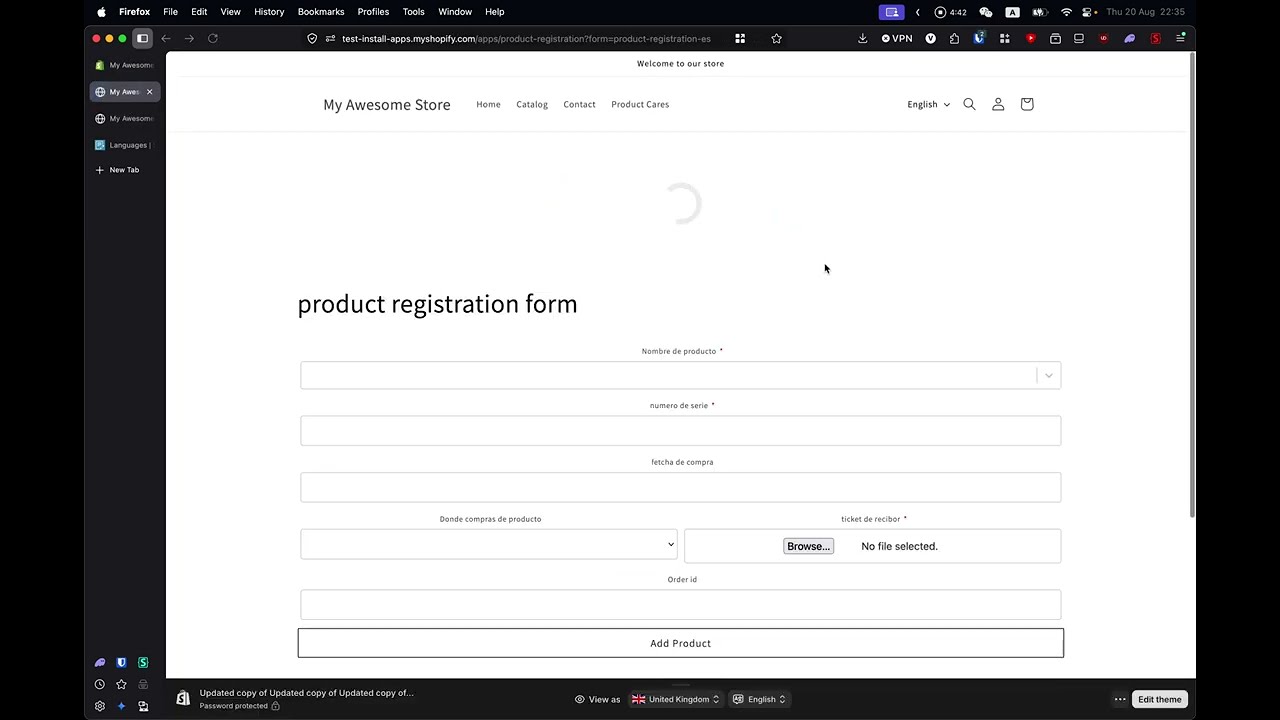
You install a product registration app, open the form builder, and there it is: a blank canvas. Product field? Serial number? Purchase date? Should the customer enter their order number? Do you need photo uploads? One page or two? Terms and conditions?
Every one of those decisions is yours to make — before your form has even a single field on it. It’s the moment most tools lose people. Not because building a form is hard, but because starting from nothing always is.
That’s why creating a new form in My Product Cares no longer starts with a blank canvas. It starts with a gallery of ready-made form templates — and every one of them is a complete, working form you can publish as-is or shape into your own.
The Problem with Starting From Scratch
When you build a form field by field from nothing, three things tend to happen:
You forget something important — and find out later. The order-number field that would have auto-filled the products. The photo upload that saves your team a “can you send us a picture?” email on every claim. The terms-and-conditions consent your legal team asked for. These are the fields experienced brands always end up adding — usually after the first awkward support conversation.
You rebuild the same forms everyone else builds. A return form needs an order number, a product picker, and a refund-method choice. A repair request needs fault details, photos, and a preferred date. A warranty claim needs an order lookup and evidence. These patterns are solved problems — but from a blank canvas, you solve them again from scratch.
Your first impression of the app is homework. The fastest path to value with any registration app is getting a form live. A builder that greets you with an empty page delays exactly that.
Templates fix all three at once: you start from proven, complete forms and spend your time making them yours instead of making them exist.
The Template Gallery
Click New form in the My Product Cares admin and you’ll see the gallery — eight templates across three categories, each with a sketch preview of its layout and a short list of what’s inside:
Registration
- Product Registration — the classic two-page registration: product and serial number first, then customer details.
- Warranty Registration — registration with purchase channel and warranty terms consent, for activating extended coverage.
Claims & Returns
- Warranty Claim — a one-page claim with order lookup, issue details and photo evidence, linked to your registrations.
- Return Request — the customer enters their order number, picks the products, and chooses how they’d like to be refunded.
- Exchange Request — an order-based swap: the customer picks what they’re exchanging and what they want instead.
- Repair Request — book a repair with product and fault details, photos, and a preferred service date.
Support
- Contact Us — a simple contact form with no product fields, for any purpose.
- Product Feedback — rating, written review and optional photos — great for collecting reviews and product insight.
Prefer to build your own? Start blank is still right there — and it now asks the two questions that matter (a general form or a claims-linked form, one page or two) so even a from-scratch build begins with sensible scaffolding.
Not a Skeleton — a Working Form
Here’s the part that matters: a template isn’t a stub with a few placeholder fields. It’s a complete, production-ready form — the same kind your most experienced customers run every day.
The Warranty Claim template ships with order lookup so customers’ products fill themselves in, photo upload for evidence, and claim entries that connect to your registrations dashboard. The Return Request template includes the order-based product picker, a refund-method choice, and smart logic that adapts the form to the customer’s answers. Every template carries the field ordering, required-field choices, and layout details we’ve refined across thousands of live stores.
And because it’s a real form, everything is editable. Pick a template, give your form a name, and it opens in the form builder — drag fields, rename labels, add your own custom questions, wire up conditional logic, translate it into your customers’ languages. The template gets you to the finish line faster; it never fences you in.
If you start from the Warranty Claim template, it’s also worth knowing about a companion setting: requiring claims to come from an existing registration. Together, they give you a claims process that’s fast to set up and hard to game.
A Theme That Matches the Form’s Job
Forms created from a template also pick up a form theme — a small set of light and dark presets you can switch between on the Design page, or leave on Auto for clean, neutral styling. A dark-theme warranty claim embedded on a dark product page no longer needs a line of custom CSS to look like it belongs there.
It’s a light touch by design: the presets set the essentials, your store’s page does the rest of the talking.
Who This Is For
- New merchants — go from install to a live, well-built registration or claim form in minutes, not hours.
- Existing merchants adding a second form — you have registration covered; a returns or exchange form is now an evening project instead of a rebuild.
- Brands that want consistent after-sales flows — claims, returns, exchanges and repairs that follow the same proven structure, so your team knows what to expect from every submission.
How to Use It
- In the My Product Cares admin, go to Forms → New form.
- Browse the gallery and pick the template closest to what you need — the sketch preview shows the layout before you commit.
- Give your form a name and click Create. You’ll land in the form builder with everything pre-built.
- Adjust anything you want — fields, wording, logic, design, theme — and publish.
That’s the whole journey: from empty admin to a live form, with the hard thinking already done for you.
The Bottom Line
A form builder’s job isn’t to give you an empty canvas — it’s to get your customers registering, claiming, and coming back. The best form is the one that’s live. Templates get you there in minutes, with the field choices and flows that experienced brands converged on through years of iteration, and the full builder underneath for everything that makes your store different.
Ready to see it? Open Forms → New form in My Product Cares and pick a template. New to the app? Install it from the Shopify App Store and have your first form live before your coffee gets cold.
The fastest form to build is the one that’s already built.